
🚀 Introduction
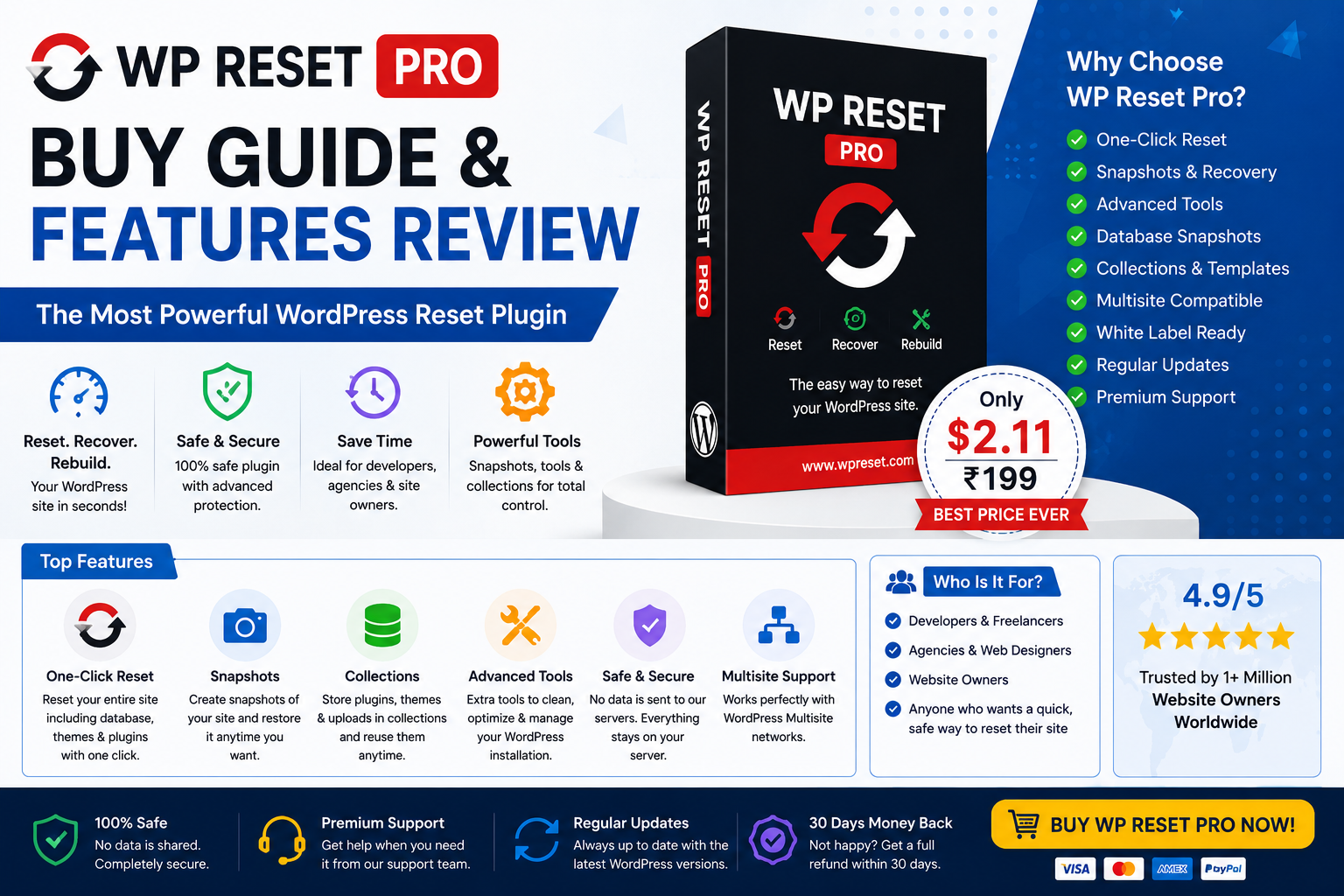
WP Reset Pro is one of the most powerful WordPress troubleshooting and recovery plugins available for developers, bloggers, and website administrators.
It helps users:
- Reset WordPress safely
- Recover broken websites
- Create snapshots
- Restore backups quickly
- Troubleshoot plugin conflicts
- Manage development environments
In this guide, we will learn how to install and properly use WP Reset Pro step-by-step.
✅ What You Need Before Installation
Before installing WP Reset Pro:
- Backup your website
- Ensure WordPress is updated
- Use administrator access
- Disable unnecessary plugins temporarily
🖥️ Step 1 — Install WP Reset Plugin
Method 1: Install from WordPress Dashboard
- Login to WordPress Dashboard
- Go to Plugins → Add New
- Search for “WP Reset”
- Click Install
- Click Activate
Method 2: Upload Pro Version
If you purchased the Pro version:
- Download ZIP file
- Go to Plugins → Add New
- Click Upload Plugin
- Upload ZIP file
- Activate plugin
⚙️ Step 2 — Configure WP Reset Pro
Go to:
Tools → WP Reset
You will see multiple sections:
- Reset Tools
- Snapshots
- Collections
- Emergency Recovery
- Settings
📸 Step 3 — Create First Snapshot
Snapshots help restore your website instantly.
Create Snapshot
- Open Snapshots tab
- Click Create Snapshot
- Enter snapshot name
- Save snapshot
🔥 Why Snapshots Are Important
Snapshots protect your website before:
- Plugin updates
- Theme changes
- Core updates
- Code modifications
- Malware cleanup
🛠️ Step 4 — Use Reset Tools
WP Reset Pro allows different reset levels.
Available Reset Options
✅ Plugin Reset
Reset installed plugins.
✅ Theme Reset
Reset active theme settings.
✅ Database Reset
Clean unnecessary database tables.
✅ Full Site Reset
Restore WordPress to fresh installation state.
⚠️ Important Safety Warning
Before using Full Reset:
- Create backups
- Save uploads folder
- Export important data
- Verify recovery snapshot
🔐 Step 5 — Emergency Recovery Script
WP Reset Pro includes Emergency Recovery tools.
Useful when:
- WordPress admin breaks
- Login page fails
- Fatal errors occur
- Plugin conflicts crash website
📦 Step 6 — Plugin Collections
Plugin collections help save frequently used plugins.
Perfect for:
- Developers
- Agencies
- Repeated setups
- Testing environments
☁️ Step 7 — Cloud Storage Setup
WP Reset Pro supports cloud integrations.
Benefits:
- Remote backups
- Safer storage
- Faster recovery
- Better disaster management
🚀 Best Practices While Using WP Reset Pro
✅ Recommended
- Create snapshots regularly
- Test changes safely
- Use staging websites
- Keep backups updated
❌ Avoid
- Resetting production sites without backup
- Deleting important uploads accidentally
- Ignoring snapshot creation
📊 WP Reset Pro Use Cases
WP Reset Pro is excellent for:
| Use Case | Benefit |
|---|---|
| Plugin Testing | Fast recovery |
| Development Sites | Easy resets |
| Malware Cleanup | Safe troubleshooting |
| Broken Website Recovery | Emergency restore |
| Theme Experiments | Snapshot rollback |
🧠 Final Thoughts
WP Reset Pro is an essential plugin for anyone working with WordPress websites regularly.
It simplifies troubleshooting, recovery, and development workflows while reducing downtime and manual work.
Whether you are a beginner or developer, WP Reset Pro can significantly improve your WordPress management process.
Best WordPress Troubleshooting Plugins
How to Backup WordPress Website
WordPress Speed Optimization Guide
Common WordPress Errors & Fixes
🚀 We Recommend Hostinger
📢 Exclusive Offer 🎁
If you purchase Hostinger hosting through our link and contact us via WhatsApp or Email,
you will receive one Premium Website Template absolutely free (100% Free of Cost).